
Use Sonic object storage with Node.js

Since Sonic is a S3-compatible object storage, you can use s3 libraries, like the S3Client provided by the AWS SDK. To begin, create a storage zone in your account and select the region and storage tier that you prefer. Pushr will create a bucket and will configure CDN routing automatically to cache and accelerate your bucket's content globally.
Create a storage zone
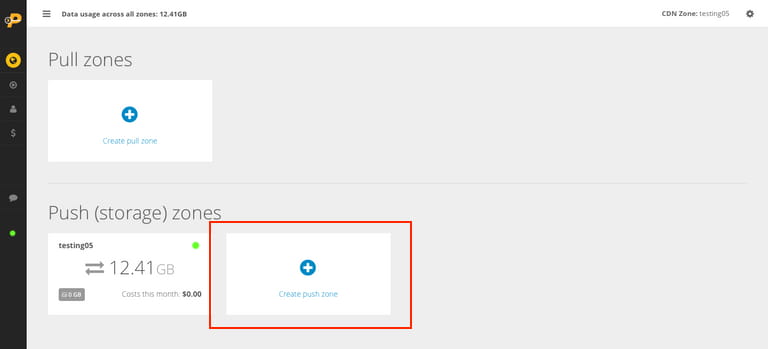
Each storage zone is a bucket + a CDN configuration applied automatically. From the CDN section in your dashboard, create a new storage zone:
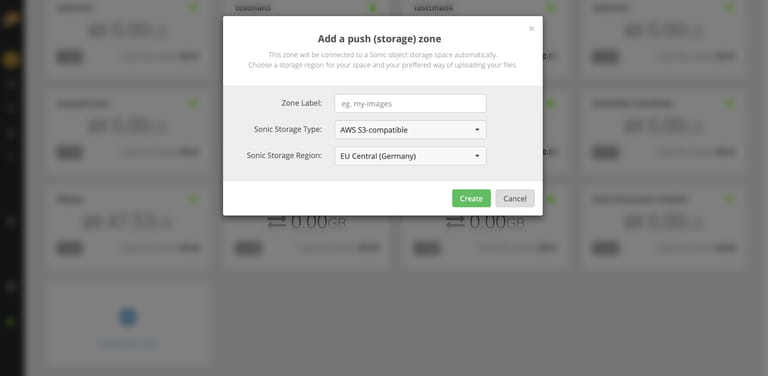
In the popup window that appears, name your zone and select a storage region:
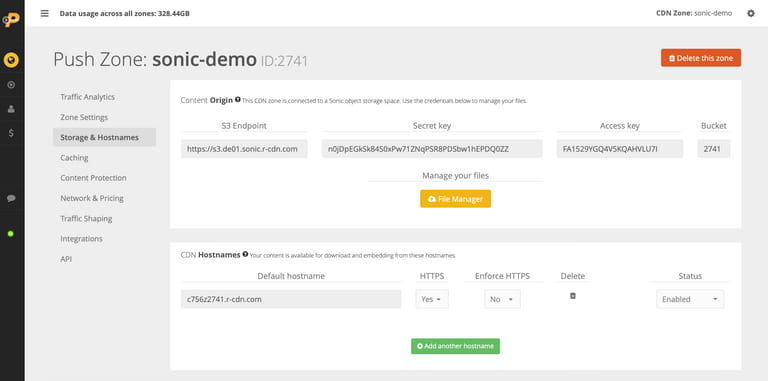
Now with your new storage zone created, click on it to manage it. Navigate to the Storage & Hostnames tab to reveal your storage endpoint, access key, secret key and the bucket name that was generated for you automatically:
Configure Sonic
Install the AWS SDK package:
npm install @aws-sdk/client-s3Using @aws-sdk/client-s3
Configure the Sonic S3 endpoint and credentials in /utils/s3.js:
import { S3Client, PutObjectCommand } from "@aws-sdk/client-s3";const s3 = new S3Client({endpoint: "https://s3.eu-central.r-cdn.com",forcePathStyle: false,region: "us-east-1",credentials: {accessKeyId: process.env.S3_KEY,secretAccessKey: process.env.S3_SECRET}});export { s3Client };
Note: the region variable is set for compatiblity with the AWS SDK, especially bucket creation, but is currently not being used by Sonic. Instead, to create a new bucket, you need to create a new storage zone in your account, and a bucket will be created and attached to it automatically.
Using aws4fetch
Aws4fetch is a compact AWS client and signing utility for modern JS environments. The following example demonstrates an object upload with aws4fetch and the Hono web framework:
import { Hono } from 'hono'
import { AwsClient } from 'aws4fetch';

const app = new Hono<{
  Bindings: {
    SONIC_HOST: string
    SONIC_BUCKET: string
    SONIC_ACCESS_KEY_ID: string
    SONIC_ACCESS_KEY_SECRET: string
  }
}>()

app.get('/', (c) => {
  return c.json({
    message: "hello world.",
  })
})

app.post('/v1/upload', async (c) => {
  const bucket = c.env.SONIC_BUCKET
  const accessKeyId = c.env.SONIC_ACCESS_KEY_ID
  const accessKeySecret = c.env.SONIC_ACCESS_KEY_SECRET
  const sonicHost = c.env.SONIC_HOST
  const file = (await c.req.formData())?.get('file') as File | null;
  if (!file) {
    return c.json({
      message: "no file uploaded.",
    }, 400)
  }

  const aws = new AwsClient({
    region: 'us-east-1',
    accessKeyId,
    secretAccessKey: accessKeySecret,
  })

  const objectName = `${Date.now()}-${file.name}`
  const url = `https://${sonicHost}/${bucket}/${objectName}`

  try {
    const fileData = await file.arrayBuffer();
    console.log(file.size, fileData.byteLength)
    const resp = await aws.fetch(url, {
      method: 'PUT',
      headers: {
        'Content-Type': file.type,
        'Content-Length': file.size.toString(),
      },
      body: fileData,
    })

    if (!resp.ok) {
      const body = await resp.text()
      return c.json({
        message: 'failed to upload file.',
        error: body,
      }, 500)
    }

    return c.json({
      message: 'file uploaded successfully.',
      url: `https://your_cdn_hostname/${objectName}`,
    })
  } catch (err) {
    console.error(err)
    return c.json({
      message: 'failed to upload file.',
    }, 500)
  }
})

export default app
Bucket policy
Sonic does not support editing of bucket policies. There is one default mixed access policy that applies to each bucket. It has the following characteristics:
• Unauthenticated requests can download files from the bucket url/CDN hostname via direct links.
• Only authenticated requests can write, list and tag objects towards the S3 endpoint. This behaviour is equivalent to disabling AWS's Block Public Access setting.